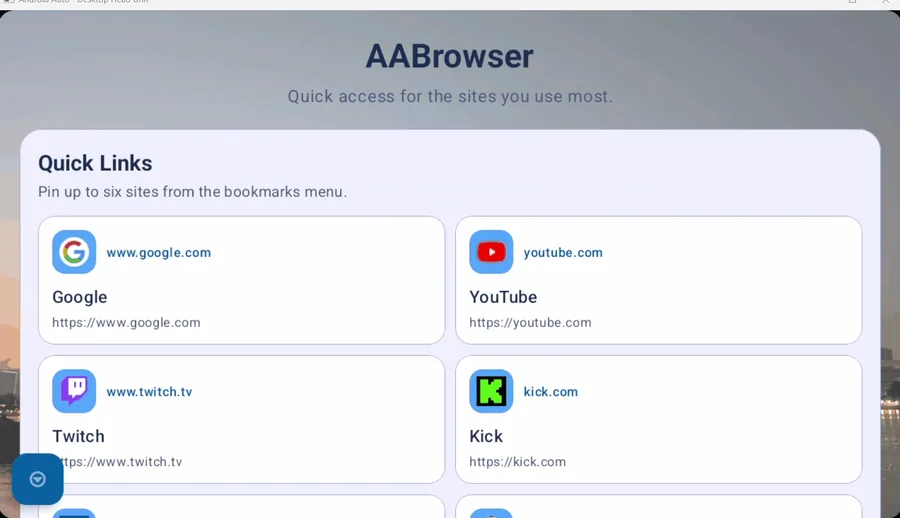
Before installing AA Browser APK
Do not begin with the download button. First make sure the device can actually run the current build and that the file destination is the official project.
The current official asset is AABrowser-2.2.apk, published June 13, 2026. GitHub reports 6,763,349 bytes and SHA-256 0b7d800f081e0f785a6a89f33d46c5baea697cd0b6e0750ef86d950ec5f85d40. The package ID in the source configuration is com.kododake.aabrowser. Use the verified sequence below to install AA Browser APK without confusing the Android package permission with the separate Android Auto setting. If you need to install AA Browser APK again, identify which stage failed before changing developer options.
If the phone runs Android 14, stop before downloading 2.2. The app's API 35 minimum is higher than Android 14's API 34. The Android 14 guide explains why Android Auto developer options cannot fix that installer-level mismatch and when the official version 1.3 build may be relevant.
- Check Settings > About phone and confirm Android 15 or later for AA Browser 2.2.
- Confirm Android Auto already connects to the vehicle and launches ordinary supported apps.
- Use only github.com/kododake/AABrowser; the developer says this is the only official source.
- Plan to complete setup while safely parked, with enough time to read installer and Android Auto prompts.
- Do not use a modified, cracked, re-signed, or mirror-hosted APK as a workaround for compatibility.
Download and verify the AA Browser APK
A matching digest proves that your file matches GitHub's release asset. It is not an independent malware audit and should not be described as one.
- 1
Open the official Release
Use the download button above. After the countdown, the URL must begin with
https://github.com/kododake/AABrowser/releases/download/. - 2
Confirm the filename
For the current release, Android's download panel or file manager should show
AABrowser-2.2.apk, not a ZIP, installer app, shortened link, or renamed “mod” file. - 3
Compare the file size
The v2.2 asset contains 6,763,349 bytes. A small display difference can come from decimal versus binary units, but the exact byte count should match when available.
- 4
Optionally verify SHA-256
Use a trusted checksum tool on the phone or a desktop computer and compare the digest with the GitHub value shown above. A different digest means you do not have the same bytes as the release asset.
Install AA Browser on the Android phone
Menu names vary across Samsung One UI, Google Pixel Android, EMUI, and other manufacturer interfaces. Search Settings for “install unknown apps” if the prompt does not lead directly to the control. The permission belongs to the source app, such as Chrome or Files, not to a universal switch that should be enabled everywhere.
- 1
Open the downloaded APK
Use the browser's completed-download notice or a file manager. Android should identify it as an app installation package.
- 2
Allow this source when prompted
Android may block the install and offer Settings. Enable “Allow from this source” only for the browser or file manager that opened the verified file.
- 3
Return to the installer
Go back, review the package prompt, and tap Install. If Android reports that the app is incompatible, verify the phone is on Android 15 or later.
- 4
Close or open after completion
The phone-side launcher is not the final test. AA Browser is meant for the Android Auto environment, so continue with Developer Settings before judging whether installation worked.
- 5
Revoke installer permission if desired
Return to the special app-access setting and turn off “Allow from this source” after installation. The installed app does not need that permission merely to run.
Enable AA Browser in Android Auto Developer Settings
- 1
Open Android Auto settings
Search the phone's Settings app for Android Auto and open its settings page. The location varies by Android build.
- 2
Scroll to Version
Find the Version section near the bottom and tap it ten times. Accept the prompt that enables Android Auto developer mode.
- 3
Open the three-dot menu
Use the menu in the upper-right corner and select Developer settings. This is separate from the phone's general Developer options.
- 4
Enable Unknown sources
Locate the Unknown sources checkbox and turn it on. This lets Android Auto expose compatible apps that were not installed from its normal approved distribution path.
- 5
Reconnect to the vehicle
Disconnect and reconnect Android Auto, or restart the connection. Check the app list while parked and open AA Browser only when it is safe to do so.
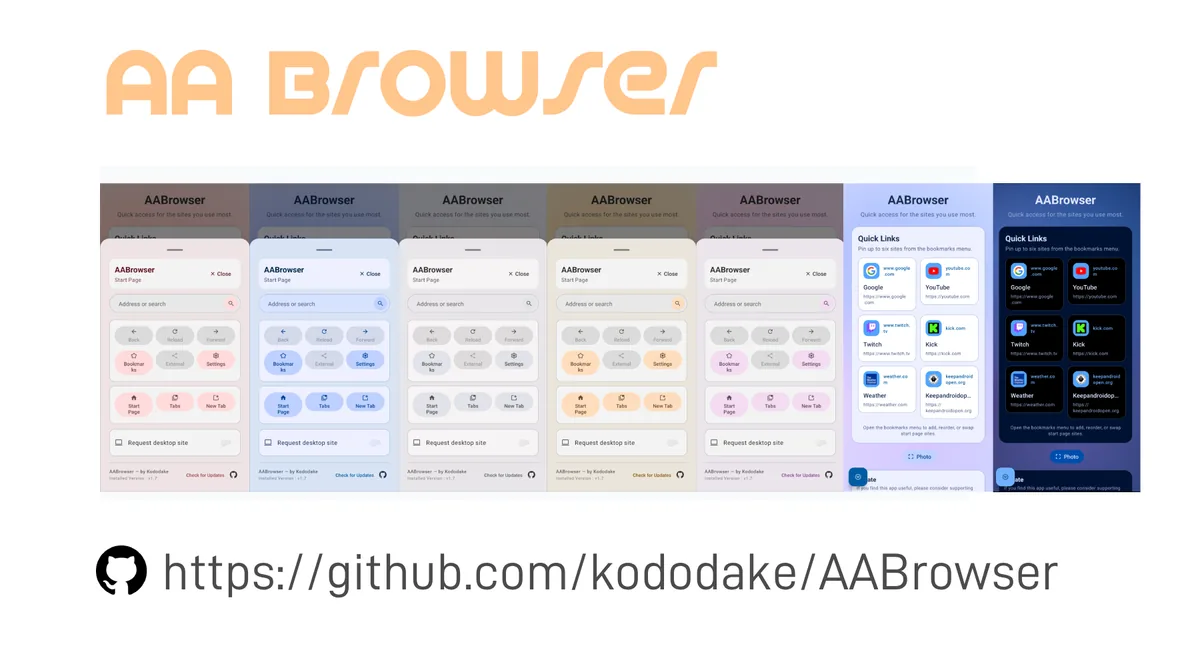
AA Browser installation troubleshooting
If the official troubleshooting suggestion does not help, search GitHub Issues. A useful report includes the AA Browser version, phone model, Android version, Android Auto version, vehicle or head unit, connection type, exact failure stage, and repeatable steps. Do not post private URLs, account data, vehicle identifiers, or screenshots containing personal information.
Avoid troubleshooting by enabling every developer option or installing several unofficial versions. That makes the original cause harder to identify. Change one relevant condition at a time, record the result, and return modified settings to their previous state when they do not help.
| Problem | Likely boundary | Next action |
|---|---|---|
| APK says incompatible | Phone is below Android 15 | Do not retry 2.2; review OS update or the official 1.3 old version. |
| Install button is blocked | Unknown-app permission | Allow only the browser/file manager used for this verified APK. |
| Installed but no Android Auto icon | Android Auto Unknown sources | Unlock Developer Settings, enable the option, then reconnect. |
| Icon appears but app will not start | Runtime or Android Auto issue | Open a non-Google Maps navigation app such as Waze first, then AA Browser, as suggested by the README. |
| Website does not load | Network/WebView/site issue | Test a simple HTTPS page and distinguish app launch from page-specific behavior. |
What to configure after installation
Complete bookmarks, permissions, theme, scale, tabs, and quick actions before moving the vehicle. AA Browser does not remove the driver's responsibility to keep attention on the road. If the screen could distract you, uninstall the app, which mirrors the developer's own safety request.
Start page
Choose a home page or use the built-in dashboard, then set only the quick links you genuinely need while parked.
Display scale
Adjust global scale and mobile or desktop mode so page controls fit the head-unit screen without clipping.
Theme
Select light, dark, or AMOLED presentation before a trip so you are not changing appearance while driving.
Updates
Use the in-app update check, GitHub Releases, or the developer-recommended Obtainium route to monitor official releases.
AA Browser installation FAQ
Do I need AAAD to install AA Browser?
No. The official README says no special installer is required. Download the APK from GitHub and install it normally, then enable Android Auto Unknown sources.
Why does AA Browser say app not installed?
For version 2.2, first confirm Android 15 or later. Also verify the file is complete, comes from the official Release, and is not a modified package.
Where is Unknown sources in Android Auto?
Open Android Auto settings, tap the Version section ten times, open the three-dot Developer settings menu, and enable Unknown sources.
Can I install AA Browser on Android 14?
The current 2.2 release cannot install because it requires Android 15. Version 1.3 declared Android 10, but current Android Auto compatibility is not guaranteed.
Should I keep Allow from this source enabled?
It is not required for the installed app to run. You can revoke the browser or file manager's installer permission after the APK is installed.
Can I install AA Browser on an iPhone?
No. APK is an Android format, and the official project provides no iOS build.