What does AA Browser not installing actually mean?
An installation error is not the same problem as an app that installs but is missing from Android Auto. Match the symptom to the stage before changing settings.
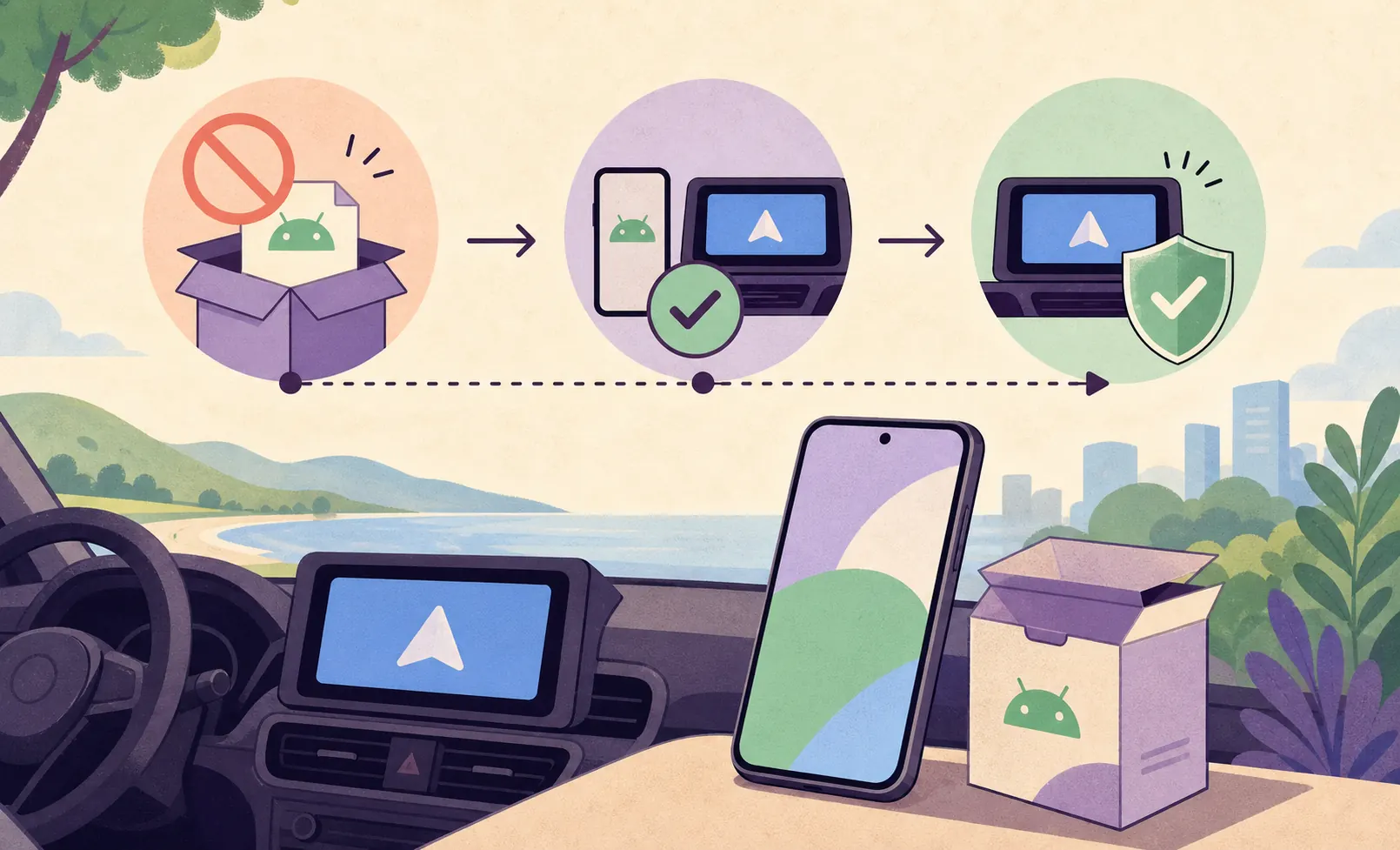
The most useful first question is simple: did Android reject the APK before installation completed, or did the app install successfully and fail later? If the phone says that the app was not installed, the Android package and device version matter. If the phone reports success but Android Auto does not list AA Browser, the problem has moved to automotive app discovery. Repeating the download cannot solve a launcher setting.
Use the complete AA Browser installation guide for the normal first-time sequence. Use this page when that sequence has already stopped at a specific error and you need a decision tree. Keep every test stationary: Android Auto and a browser should never be operated by a driver while the vehicle is moving.
| Stage | Typical symptom | Best next check |
|---|---|---|
| Download | The file is missing, tiny, or has the wrong name | Use the official v2.2 Release and compare the filename and byte size. |
| Android installer | App not installed, package parsing error, or incompatible package | Check Android 15 / API 35, file completeness, and the source-app permission. |
| Android Auto discovery | The APK installed but no AA Browser icon appears | Enable Android Auto Developer settings and Unknown sources, then reconnect. |
| App launch | The icon appears but the browser closes or stalls | Test while parked, try the README's launch order, and record a reproducible issue. |
| Website loading | AA Browser opens but one page fails | Separate network, WebView, certificate, sign-in, DRM, or site behavior from installation. |
Confirm Android 15 before troubleshooting the APK
AA Browser v2.2 declares API 35 as its minimum. Android 14 is API 34, so the current package can be rejected before Android Auto or Unknown sources settings are involved.
The minimum SDK is part of the application package's build configuration. It is different from Android Auto's Unknown sources switch: one describes which operating systems the app can run on, while the other controls whether a compatible sideloaded automotive app may be exposed. Turning on the second option cannot make API 34 satisfy an API 35 minimum.
An older official release may have a lower minimum, but that does not make it a universal compatibility solution. AA Browser 1.3 declared Android 10 / API 29 and may install on newer phones, yet it lacks later fixes and features and is not guaranteed to work with every current Android Auto setup. Treat the AA Browser 1.3 page as a documented fallback decision, not as a promise.
Update the phone when the manufacturer supports it, review the documented old-version trade-offs, or wait for a first-party change. Settings cannot rewrite the APK minimum.
- Open Settings > About phone and record the Android version, not only the phone model.
- Treat Android 15 or later as the requirement for the current v2.2 release.
- Do not expect Android Auto Developer settings to lower an APK's minimum SDK.
- If the phone is Android 14, read the Android 14 compatibility guide before trying the same file again.
- Do not use a patched, cracked, re-signed, or mirror-hosted APK to bypass a platform requirement.
Verify the AA Browser APK file before opening it
A package parsing error often means Android could not read the file as a valid installable package. That can happen when the download is incomplete, the extension was changed, the file is not the intended APK, or the phone cannot accept the package's declared platform requirements. It is not evidence that a third-party “fix APK” is trustworthy.
A SHA-256 comparison can show that your bytes match the release asset, but it is not a malware audit. If you need a stronger record for a support report, note the release URL, filename, byte size, phone model, Android version, and the exact installer message. The GitHub authenticity guide explains how to separate a first-party release from a copied page.
- 1
Use the official Release path
The stable source is the v2.2 GitHub Release. The direct asset name is
AABrowser-2.2.apk. - 2
Compare the file identity
The verified v2.2 asset is 6,763,349 bytes and uses the Android APK MIME type. A different filename, an archive, or a much smaller download is not the same release asset.
- 3
Check the package source
Open the file with the browser or file manager that downloaded it. Android's installer permission belongs to that source app; it is not a reason to enable every unknown-source option.
- 4
Retry only after a clean comparison
If a partial download or interrupted transfer is likely, remove that incomplete copy, download once from the stable Release link, and compare again. Do not keep multiple modified copies with similar names.
Fix installer permission and package conflicts carefully
If a previous AA Browser build is installed, Android may be comparing the new package with an existing signature, version code, or installation state. A downgrade can fail even when the file itself is intact. This is especially important when moving between official releases and copies from other hosts. The safest path is to keep the official source, record the current version, and only remove an existing app after considering local settings and data.
If the file installs but the icon is absent from Android Auto, stop treating it as an APK installation problem. Follow the missing-app guide for Developer settings, Unknown sources, launcher refresh, and clean reinstall checks.
A successful phone-side installation does not guarantee that the app is listed, launches, or loads every website on a head unit.
- 1
Allow one source only
If Android opens an install-settings prompt, enable Allow from this source for the browser or file manager that opened the verified APK. Return to the installer afterward.
- 2
Read the exact message
“App not installed”, “incompatible”, “package appears invalid”, and a signature or downgrade warning point to different causes. Capture the wording while parked instead of paraphrasing it later.
- 3
Check for an existing build
A different signed copy with the same package can block an update or downgrade. Check whether an AA Browser installation already exists and preserve any settings you need before removing it.
- 4
Avoid blind cleanup
Do not clear every Android Auto permission, uninstall unrelated apps, or enable broad developer options as a first response. Change one relevant condition at a time.
When an old version is relevant, and when it is not
The fact that an old APK installs does not prove that it is the right answer. Compare the operating-system requirement, package identity, release notes, missing features, and Android Auto behavior before choosing a rollback. If the problem is only that the current release is not visible after installation, an old version may create a second problem instead of solving the first.
For a complete release comparison, use the AA Browser version history. It records official files and old-version context without presenting a mirror or claiming that a version is safe merely because it is older.
Android 14
V2.2 requires Android 15 / API 35. Android 14 cannot satisfy that requirement through a launcher or permission setting.
Official 1.3
Version 1.3 declared Android 10 / API 29, but it lacks later updates and may not match current Android Auto behavior.
Random patched APK
A download that promises to bypass the minimum, unlock features, or remove safety restrictions is outside the verified release path.
What to record before asking for help
A reproducible report is more useful than a screenshot of a generic error. Collect only the technical details needed to identify the stage and avoid sharing private data.
If you have already changed several settings, write down what changed before continuing. Revert irrelevant changes when possible, then test one condition at a time while parked. This makes it easier to tell an OS compatibility problem from a damaged download, a package conflict, Android Auto discovery, or a website-specific failure.
The most important safety result is also a technical result: if the app or its content could distract the driver, stop the test. AA Browser is an optional parked-use tool, not a reason to bypass Android Auto safeguards or interact with a screen while driving.
- 1
Record the environment
Note the AA Browser version, phone model, Android version, Android Auto version, vehicle or head-unit model, and wired or wireless connection type.
- 2
Record the exact stage
State whether the error happened during download, when opening the APK, during installation, after installation, when opening Android Auto, or while loading a site.
- 3
Record repeatable steps
Write the shortest sequence that reproduces the issue, including whether the file came from the official Release and whether another official version was installed before it.
- 4
Use the issue tracker
The official issue tracker contains package-install reports. Follow the project's current reporting expectations and do not post account data, private URLs, vehicle identifiers, or personal screenshots.
AA Browser APK installation failure FAQ
Why is my AA Browser APK not installing on Android 14?
AA Browser v2.2 requires Android 15 / API 35, while Android 14 is API 34. The current package can therefore be rejected before Android Auto settings matter. Review the Android 14 compatibility page or update the phone when the manufacturer supports it.
What does “problem parsing the package” mean for AA Browser?
It means Android could not read or accept the file as an installable package. Check the official filename, stable Release source, byte size, file completeness, and Android requirement before assuming that a modified APK is needed.
Why does Android say app not installed when the file is official?
An official file can still be incompatible with the phone, incomplete after download, blocked by the source-app permission, or in conflict with an existing signed build. Read the exact message and identify the first failing stage.
Should I install AA Browser 1.3 instead?
Only for a specific documented compatibility reason. Version 1.3 declared Android 10 / API 29, but it lacks later changes and is not guaranteed to work with every modern Android Auto setup. Do not treat it as a universal fix.
The APK installed, but AA Browser is not in Android Auto. Is it still an install problem?
Usually not. Move to the Android Auto discovery stage: Developer settings, Unknown sources, launcher refresh, connection state, and a safe parked test. Use the missing-app guide rather than downloading the APK repeatedly.
Can I use a patched APK to install AA Browser on Android 14?
Do not rely on patched, cracked, re-signed, or mirror-hosted packages. They are outside the verified release path and can create a package, signature, privacy, or safety problem that the official project does not support.
Does a matching SHA-256 prove that the APK is safe?
No. A matching digest shows that the file bytes match the recorded GitHub asset. It does not replace an independent security audit or guarantee compatibility with a phone, vehicle, head unit, or website.