What do Android Auto developer settings do?
Developer settings expose advanced Android Auto controls that are normally hidden. They are useful for testing, compatibility checks, and some sideloaded automotive apps, but they are not a universal unlock for every phone application.
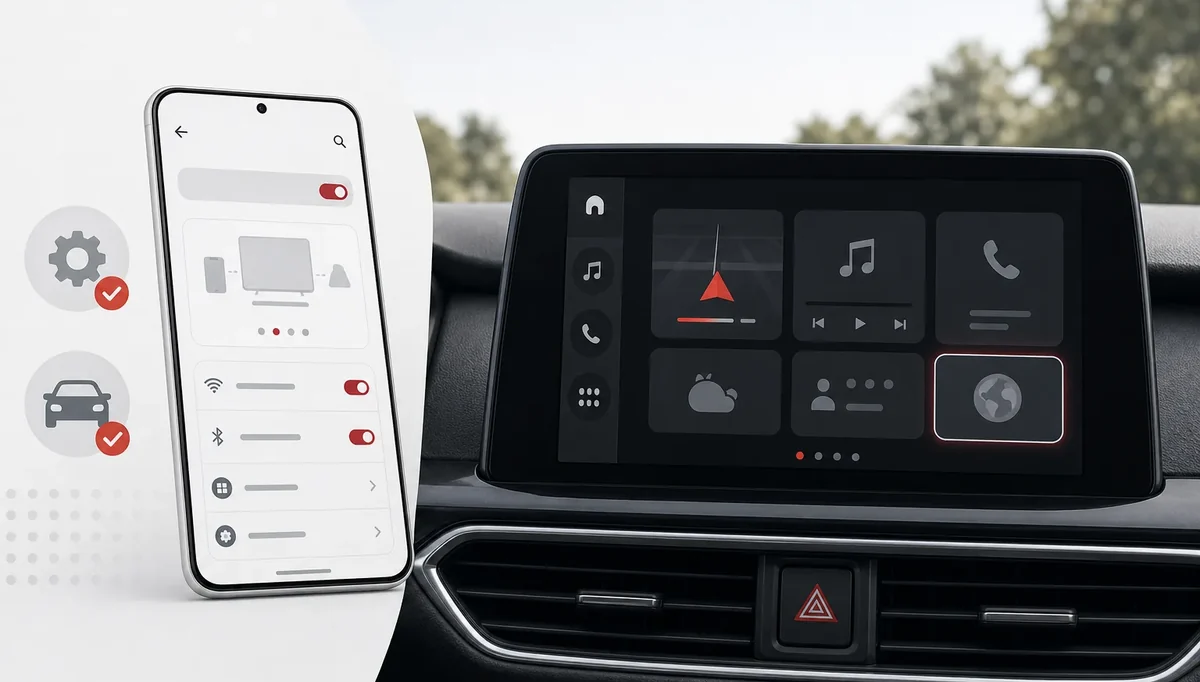
The menu belongs to Android Auto on the phone, not to the vehicle's display. The usual path is to open Android Auto settings, find the version information, tap it repeatedly until developer mode is enabled, and then use the three-dot menu to open Developer settings. Android Auto labels can move slightly between releases and phone manufacturers, so look for Version, developer mode, and the overflow menu rather than assuming one exact screen.
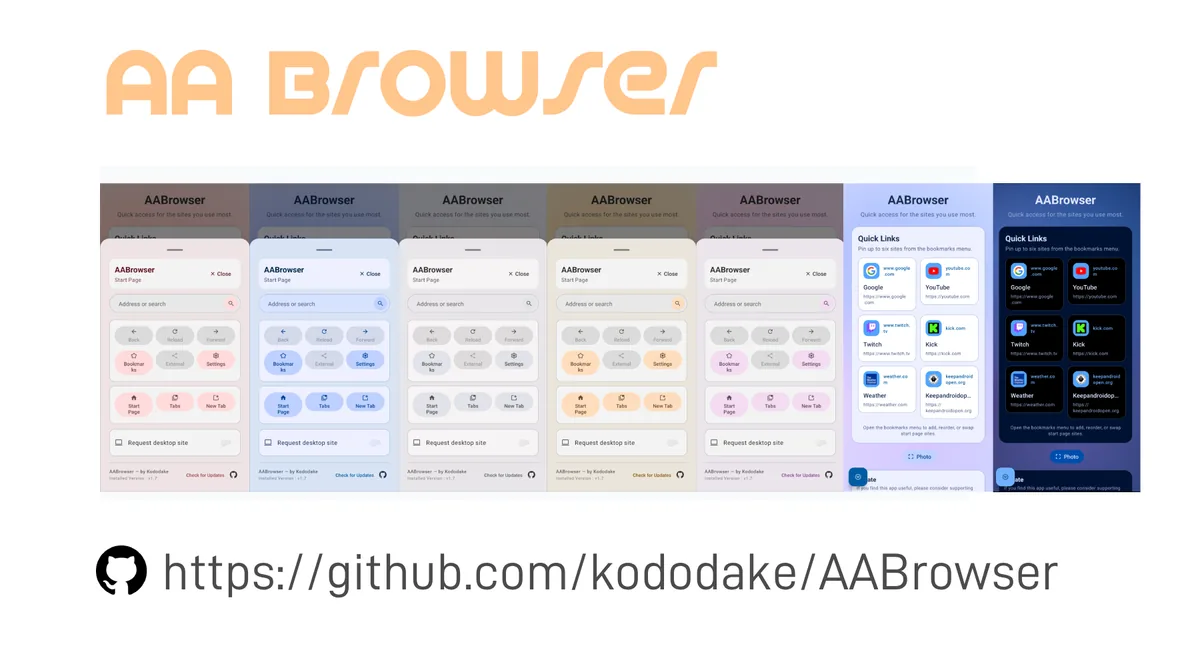
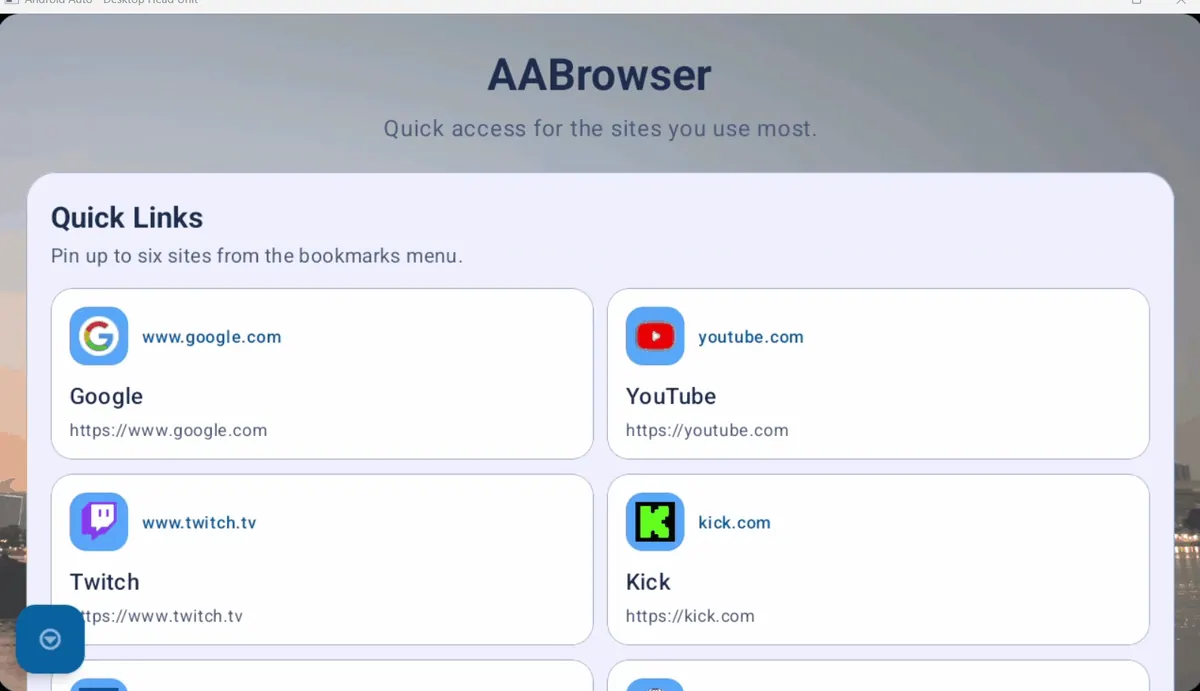
AA Browser is a separate Android Auto WebView browser with automotive declarations in its manifest. The official kododake/AABrowser repository is the product source. The current v2.2 release requires Android 15 / API 35, so developer settings cannot lower that minimum or turn an Android 14 phone into a compatible device.
Use this guide when the task is specifically to open Android Auto developer settings or to understand why Unknown sources matters. For the wider process of adding supported apps and customizing the launcher, continue to the Android Auto app guide.
How to unlock Android Auto developer settings
- 1
Open Android Auto on the connected phone
Use the phone that actually connects to the vehicle. Search the phone's Settings for Android Auto if its app icon is not visible.
- 2
Find the version information
Scroll through Android Auto settings until you find the Version entry or an equivalent app-version area. Do not use the Android operating-system version field for this step.
- 3
Tap the version ten times
Tap the Android Auto version area repeatedly. Accept the confirmation prompt when Android Auto says that developer mode or developer settings are being enabled.
- 4
Open the overflow menu
Use the three-dot menu in Android Auto settings and choose Developer settings. If the item is missing, close and reopen Android Auto after the version-tap confirmation.
- 5
Change only the setting you need
Read each option before changing it. For a compatible sideloaded automotive APK, locate Unknown sources and enable it only when you understand the source and compatibility requirements.
- 6
Disconnect and reconnect while parked
End the current Android Auto session, reconnect the phone, and check the launcher. Test AA Browser with a simple page only when the vehicle is safely parked.
Which Android Auto developer options matter here?
The phrase Android Auto developer options is often used interchangeably with developer settings, but the menu is not a general Android developer-options panel. Avoid changing unrelated rendering, logging, or connection values just because a tutorial lists them. A setting that helps one phone or head unit can make another connection harder to diagnose.
The verified v2.2 asset is AABrowser-2.2.apk, 6,763,349 bytes, from the official GitHub release published June 13, 2026. No newer release was found on August 4, 2026. Use the source-verification guide if a mirror uses a different name or claims to remove Android Auto restrictions.
Do not browse, change settings, or read a screen while driving. Finish setup before a trip, or have a passenger operate the phone where local law permits.
Unknown sources
This is the setting most relevant to an automotive APK installed outside Google Play. It does not validate a file or bypass Android's minimum SDK.
Fresh discovery
Android Auto may need a new session after installation or a settings change. End the old session before deciding that the app is still missing.
Phone compatibility
AA Browser 2.2 requires Android 15 / API 35. Confirm the phone requirement before changing hidden settings.
Source verification
Use the official GitHub release and match the filename and size. Developer mode is not a safety or authenticity check.
AA Browser still not showing after enabling settings
A developer-settings toggle is only one checkpoint. Work from the phone outward so you can tell whether the failure is installation, compatibility, discovery, launcher state, or the website itself.
After enabling Unknown sources, disconnect Android Auto completely, close its settings, and start a fresh connection. If the app is installed, open AA Browser once on the phone, then review the launcher or Customize launcher list. Do not change the cable, wireless mode, phone, and hidden settings all at once; one change at a time leaves you with evidence.
The AA Browser missing-app guide has a longer sequence for Android 15, installation state, launcher refresh, and clean reinstall. Use it when the symptom is an absent icon rather than a question about how to unlock the developer menu.
| Observed state | Check next | What it tells you |
|---|---|---|
| APK will not install | Android version and official filename | The problem is before Android Auto discovery |
| Installed but absent from the launcher | Unknown sources, reconnect, and launcher customization | Android Auto has not exposed the eligible app |
| Icon appears but app will not open | Launch AA Browser on the phone and restart the session | The package or first-run state needs attention |
| App opens but a page fails | Network, WebView, certificate, DRM, or the destination site | The launcher is working; the web request is the next layer |
| Only moving-vehicle behavior changes | Driving-state restrictions and local rules | Use a safety/travel-state guide, not more hidden settings |
What developer settings cannot fix
This distinction matters because searches for Android Auto developer settings often mix testing menus, video workarounds, screen mirroring, and app installation. A setting can explain why a sideloaded app is hidden without being a universal permission to use any app on the vehicle display. Keep the product, version, device, and driving-state questions separate.
If you are on Android 14, read the Android 14 compatibility guide instead of repeatedly toggling developer mode. If the APK install itself fails, use the AA Browser installation guide.
- They cannot make AA Browser 2.2 run on Android 14 or any phone below its Android 15 / API 35 minimum.
- They cannot install an APK. The package must first be installed successfully on the connected phone.
- They cannot turn an ordinary phone-only browser into an Android Auto automotive app.
- They cannot guarantee support for every vehicle, head unit, Android Auto build, cable, or wireless adapter.
- They cannot remove website login, HTTPS, WebView, DRM, regional, or server-side restrictions.
- They do not override traffic law or make screen browsing safe while a driver is moving.
How to reset the test without losing the diagnosis
- 1
Record the current state
Note the phone model, Android version, Android Auto version, AA Browser version, connection type, and the exact step where the app disappears.
- 2
Undo only the experimental toggle
If a hidden option was changed unnecessarily, return it to its previous value. Turn Unknown sources off again when you no longer need to test a compatible sideloaded app.
- 3
Restart before clearing data
Restart the phone and reconnect Android Auto. Do not clear Android Auto storage first because it can remove vehicle, permission, and launcher configuration.
- 4
Use one verified package
If a reinstall is justified, use the official v2.2 release, launch AA Browser once on the phone, then repeat the parked discovery check. Do not test a chain of random APK mirrors.
Separate a settings problem from a driving problem
Once the icon appears, stop repeating launcher fixes for every later symptom. The correct next page depends on the stage that failed.
Configure and diagnose AA Browser while safely parked. A technically visible browser does not make driver interaction safe, and a passenger should operate the screen where local law and vehicle rules allow it. The developer settings page is a diagnostic reference, not a recommendation to browse during a trip.
If every checkpoint passes but the app still stays missing, collect the exact stages and search the official project's GitHub Issues before opening a report. Include only useful technical facts and never publish personal browsing data, account details, or unnecessary vehicle identifiers.
| Stage | Question | Best next guide |
|---|---|---|
| Install | Does Android accept the APK? | AA Browser APK installation |
| Discover | Does the app appear in Android Auto? | Missing-app troubleshooting |
| Launch | Does it open while parked? | Phone permissions, restart, and controlled reinstall |
| Browse | Do simple HTTPS pages load? | Network, certificate, WebView, and site checks |
| Driving state | Does behavior change only when moving? | Not working while driving |
Android Auto Developer Settings FAQ
How do I enable Android Auto developer settings?
Open Android Auto settings on the connected phone, find the Android Auto version area, tap it ten times, accept developer mode, and use the three-dot menu to open Developer settings.
Does Unknown sources make every Android app appear in Android Auto?
No. The app still needs a compatible Android package and Android Auto automotive declarations. Unknown sources is not an authenticity check, an APK installer, or a way to bypass a minimum Android version.
Why can I not see the Developer settings menu?
Confirm that you tapped the Android Auto version area rather than the phone's Android version, accept the confirmation prompt, then close and reopen Android Auto. Labels can vary by release and phone manufacturer.
Will AA Browser 2.2 work on Android 14?
No. The verified v2.2 build declares Android 15 / API 35 as its minimum. Developer settings cannot lower that requirement; use the Android 14 compatibility guide for the older-version boundary.
Should I enable developer settings while driving?
No. Perform setup and diagnostics while safely parked. Developer mode does not override traffic law or make browsing a moving vehicle safe.
Where should I get AA Browser if I need a reinstall?
Use the official kododake/AABrowser v2.2 release or the verified asset documented by the installation guide. Avoid guessed CDN paths and unverified mirrors.