Can you add any app to Android Auto?
No. Android Auto only lists apps built for its supported categories and declared for the car experience. Installing an ordinary browser, video player, or phone-only utility does not automatically create an Android Auto launcher icon.
For supported apps, install the app on the connected phone, update Android Auto, then open Android Auto settings and choose Customize launcher. Check the app if it is hidden and drag it into the order you prefer.
For a sideloaded app such as AA Browser, installation alone is not enough. The APK must include Android Auto declarations, the phone must meet its minimum Android version, and Android Auto may need Developer settings with Unknown sources.
If the app was installed after a recent drive, Android Auto may still show an older launcher list. End the session, open the app on the phone, confirm its permissions, and reconnect.
Add an official app from Google Play
- 1
Check Android Auto support
Read the Play Store description and supported-device notes. Look for explicit Android Auto support rather than assuming every navigation, audio, messaging, or browser app works on the car display.
- 2
Install on the connected phone
Use the same Android phone that connects to the vehicle. Finish sign-in and permissions on the phone before opening the app through Android Auto.
- 3
Reconnect Android Auto
Disconnect and reconnect the cable or wireless session after installation. This gives Android Auto a fresh chance to discover the app.
- 4
Open Customize launcher
On the phone, open Settings, search for Android Auto, then choose Customize launcher. Enable the app and move it to a useful position.
- 5
Test while parked
Open the launcher on the vehicle display only when safely parked. Some apps expose a limited car interface rather than the full phone interface.
Show, hide, and reorder Android Auto apps
Customize launcher controls which compatible apps appear and the order in which they are shown. It does not convert an unsupported phone app into an Android Auto app. If an app is absent from this list, troubleshoot compatibility and installation before looking for a hidden checkbox.
After changing the order, reconnect the phone. Wireless sessions can keep an older launcher state until Android Auto restarts. If the change still does not appear, restart the phone and the vehicle infotainment system before clearing any app data.
| Situation | Best action | What it means |
|---|---|---|
| App is listed but unchecked | Enable it in Customize launcher | The app is compatible but hidden |
| App is listed in the wrong place | Drag it higher in the list | Only the launcher order needs changing |
| App is not listed | Check support, updates, profile and permissions | Android Auto has not discovered an eligible app |
| App opens only on the phone | Confirm it has a car interface | A phone installation alone is insufficient |
Why an app is missing from Android Auto
Start with the least destructive checks. Most missing-app problems come from compatibility, a disabled launcher entry, a work-profile boundary, an outdated app, or a stale Android Auto session—not from a need to factory-reset the head unit.
Confirm the app supports Android Auto
Check the developer's current listing or documentation. Support can be limited by country, account, app version, vehicle, or Android Auto category.
Update the phone-side components
Update the target app, Android Auto, Google Play services, and the phone OS. Reboot after updates if the launcher remains stale.
Check profiles and permissions
An app installed only inside a work profile, secondary user, or restricted profile may not be visible to the Android Auto session using the personal profile.
Reconnect before clearing data
Try a new cable or a fresh wireless pairing only after a normal reconnect and restart. Clearing storage should be a later step because it can remove preferences and pairings.
Sideloaded APKs and AA Browser
Third-party Android Auto apps are different from official Play Store apps. They may be distributed through a developer repository and may depend on Android Auto Developer settings. Do not enable Unknown sources for a random mirror: verify the project identity, release tag, filename, package, and checksum when the source provides them.
AA Browser is a relevant example because its project declares Android Auto support and distributes releases through kododake/AABrowser on GitHub. The latest verified release remains version 3.0, published September 24, 2026. Its release notes list a fullscreen toggle, Material 3 Expressive redesign, and updated libraries. It requires Android 15 / API 35, so it will not become eligible on Android 14 merely by enabling Unknown sources.
For the exact APK steps, file facts and checksum, use the AA Browser installation guide. For app visibility, first confirm Android 15+, install the official APK, unlock Android Auto Developer settings, enable Unknown sources, then reconnect while parked.
What a car-focused browser looks like
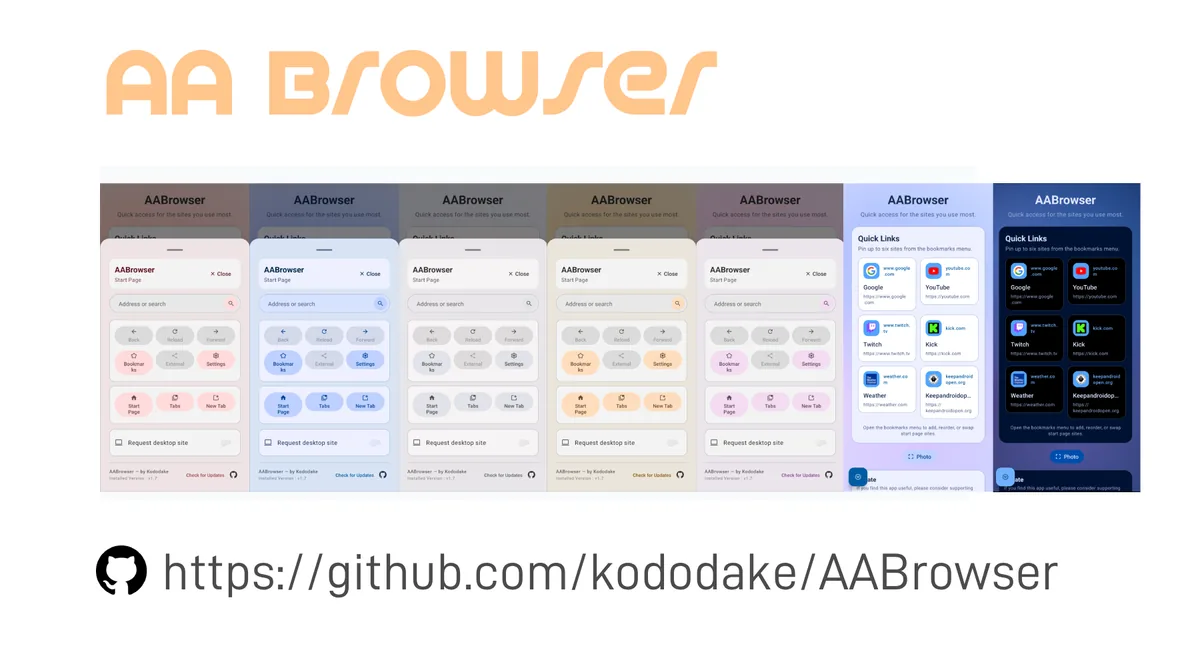
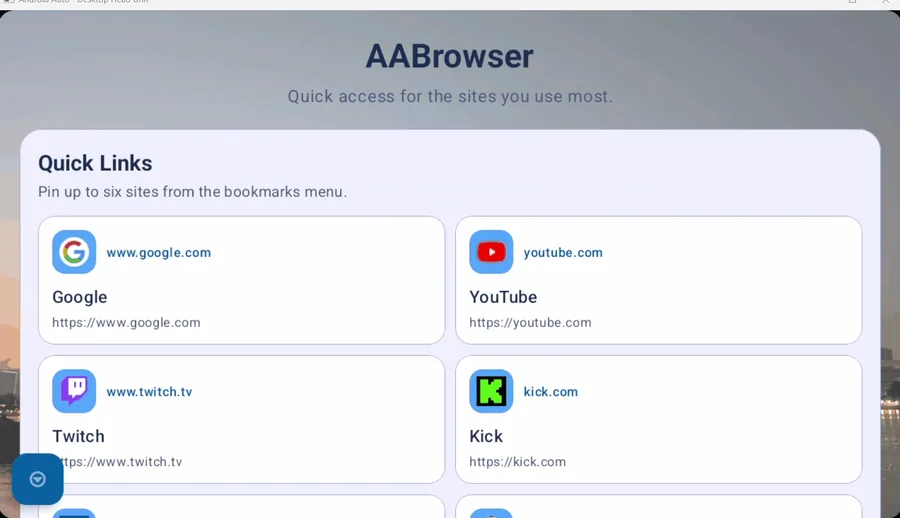
AA Browser uses a layout designed for a vehicle display, including tabs, bookmarks, quick links and display controls. A purpose-built automotive interface is the key difference between an eligible car app and a normal phone browser that Android Auto will not list.
Privacy and driving-safety checks
Park before setup
Complete launcher changes, sign-in, permissions, browsing, and troubleshooting while parked. A web page or settings screen can demand sustained attention.
Use first-party sources
Prefer Google Play for supported apps and the developer's verified repository for an APK. Avoid modded packages and sites that imitate an official download page.
Review permissions
A car app may access location, microphone, notifications, contacts, or media. Grant only the permissions needed for the feature you use.
Expect platform limits
Android Auto can restrict categories and interfaces. A workaround that appears today may stop after an Android Auto, phone OS, or vehicle update.
Choose the right path when adding an app
The safest way to add apps to Android Auto is to identify the app type before changing settings.
For an official Play Store app, confirm Android Auto support, install it on the phone that connects to the car, finish sign-in and permissions, then reconnect. Open Android Auto settings and use Customize launcher to show the compatible app and place it where you can recognize it quickly.
For a sideloaded automotive APK, verify the developer, release tag, filename, package name, minimum Android version, and any checksum before installation. Unknown sources can allow an eligible external car app to be discovered; they do not turn an ordinary phone app into an Android Auto app.
If AA Browser remains missing from the vehicle launcher, use the focused missing-app checklist. Complete setup and launcher changes while parked.
- Official app: confirm support, install, reconnect, and use Customize launcher.
- Third-party APK: verify source, release, package, Android minimum, and parked testing.
Adding apps to Android Auto: FAQ
Why is my installed app not showing in Android Auto?
It may not support Android Auto, may be hidden in Customize launcher, may belong to another phone profile, or may need an app/Android Auto update and reconnect.
Can I add Chrome or another normal browser to Android Auto?
Not simply by installing it. Android Auto only lists eligible car apps. Use a purpose-built project such as AA Browser only if your phone and Android Auto setup meet its requirements.
Where is Customize launcher?
On the connected phone, open Android Auto settings and choose Customize launcher. On some phones the quickest route is searching Settings for Android Auto.
Do I need Developer mode for Play Store apps?
No. Normal supported apps should appear without Android Auto Developer settings. Developer options are relevant mainly to testing or certain sideloaded automotive apps.
Does AA Browser work on Android 14?
Current AA Browser 3.0 requires Android 15. Enabling Unknown sources does not bypass the APK's minimum Android requirement.
How do I add an app to the Android Auto launcher?
Install a compatible app on the phone connected to Android Auto, open Android Auto settings, choose Customize launcher, enable the app, reorder it, then reconnect. An ordinary phone app cannot be added unless it declares Android Auto support.