
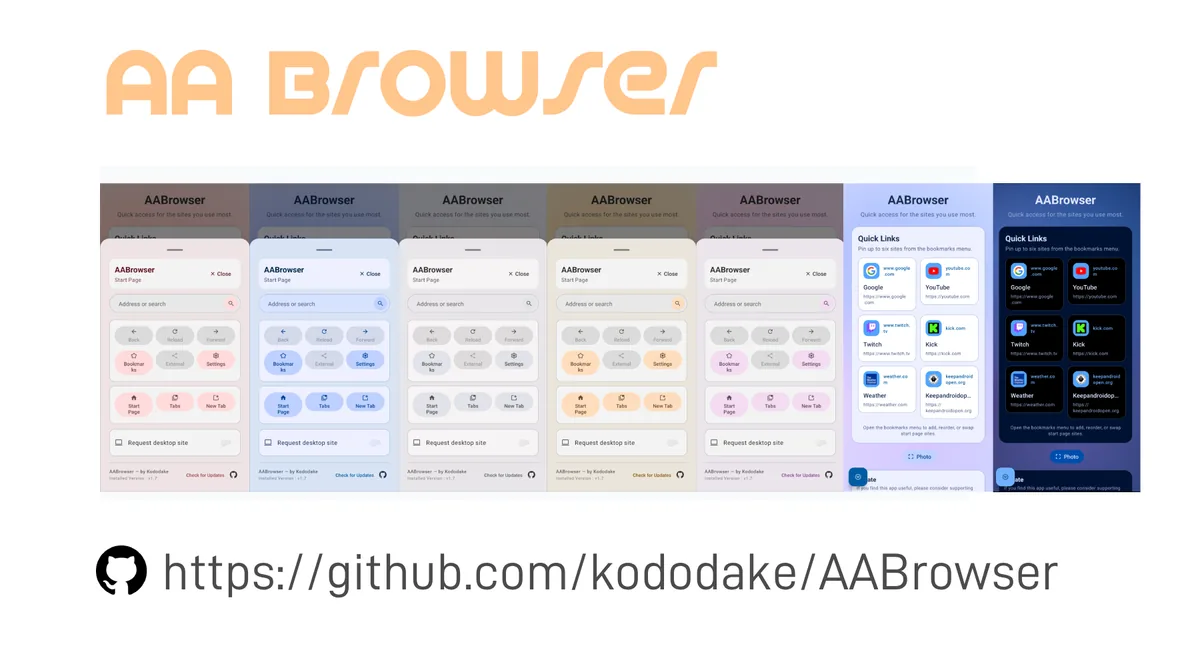
AA Browser website not loading: find the failing layer
When AA Browser website not loading is the symptom, first decide whether the app, network, or one destination is failing. A blank or stalled page does not identify one cause by itself.
AA Browser displays web content through Android's WebView environment, as described in the project's official README. A page depends on more than the browser app: the phone must reach the site, the site's security certificate must validate, and the page must work in the device's web renderer. A successful app launch does not prove that each website will load.
The fastest useful test is a comparison, not a reset. Try the exact address on the phone, then try a second ordinary HTTPS website in AA Browser. These two results help distinguish one-site trouble from a connection or browser-wide problem. Use a site you trust and do not enter passwords on a page whose address or certificate looks wrong.
This guide is for a page that fails after AA Browser has opened. If the AA Browser icon is missing, use the launcher troubleshooting guide. If the whole Android Auto screen disconnects, follow the connection troubleshooting steps instead.
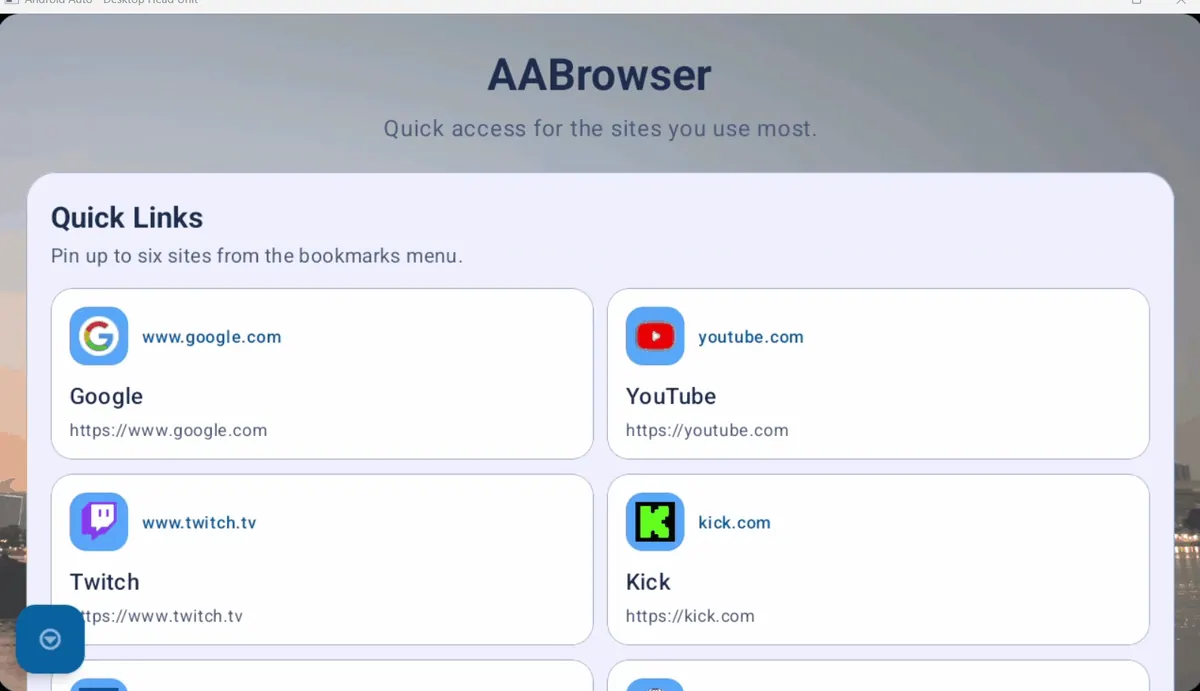
Match the loading symptom to its first check
Note what appears before changing settings. The first visible failure is often more useful than a long list of guesses.
Keep the address and account state consistent during comparisons. A homepage can load while a private page fails because of sign-in, redirects, cookies, or site access rules.
Some sites require a pop-up, special sign-in flow, download, or protected media and may behave differently in an embedded browser than on desktop. Record the failing page and step; repeated reloads or another APK will not resolve a site-side restriction.
| What you see | Compare first | What the result suggests |
|---|---|---|
| One website stays blank or spins | Open that exact address on the phone and try another site in AA Browser | A site-specific script, redirect, login, or content restriction may be involved. |
| Several websites fail in AA Browser | Open a trusted HTTPS site on the phone using the same connection | Check phone connectivity, a captive sign-in page, VPN or filtering, and the browser environment. |
| The phone also cannot open the site | Try the same phone on a different trusted network when available | The issue may be the site, network path, DNS filtering, or a sign-in requirement. |
| A certificate or privacy warning appears | Read the address and warning; check the phone's date and time | Treat the warning as a security signal. Do not skip it to force the page open. |
| Android Auto closes or disconnects too | Check whether other Android Auto apps and the connection also stop | This is broader than one webpage; diagnose the phone-to-car session separately. |
Seven parked checks for a website that will not load
Complete these checks while the vehicle is safely parked. Keep a short note of each change and result so you can undo anything that does not help.
- 1
Confirm the app and Android Auto stay open
Return to the home screen and reopen AA Browser while parked. If the app closes or the whole car display disconnects, stop testing websites and use the Android Auto connection guide. A page-only failure needs a different diagnosis from an app crash.
- 2
Retest the exact URL on the phone
On the connected phone, open the same address in a trusted browser using the same network. Note whether it redirects, asks you to sign in, shows a certificate warning, or fails there too. Never copy sensitive account details into a page you cannot verify.
- 3
Compare with one simple HTTPS site
Try one familiar, secure website in AA Browser. If that works while the target does not, focus on the target site's redirects, content, login, or compatibility. If both fail, continue with phone connectivity and browser-wide checks.
- 4
Check whether the network needs sign-in
Some public Wi-Fi networks require a browser sign-in page before normal access. Complete that step on the phone while parked, or test a trusted network you control. Do not disable security protections or join an unknown hotspot just to make a test pass.
- 5
Change one network condition
If appropriate, compare Wi-Fi with mobile data or temporarily pause a VPN or filtering service that you recognize and control. Retest once, then restore the setting if the result is unchanged. Avoid changing private DNS, firewall, and VPN settings all at once.
- 6
Check time, updates, and the exact error
An incorrect device date can interfere with secure connections. Confirm automatic date and time, then check for AA Browser and Android system updates through their normal trusted channels. Write down the full error text instead of dismissing a certificate or privacy warning.
- 7
Stop before clearing stored data
If the checks point to AA Browser itself, restart the phone and try again before taking a stronger action. Android's app settings may offer a cache-only option, but menu names vary. Avoid Clear storage or Clear data unless you understand what local browsing data or bookmarks could be removed.
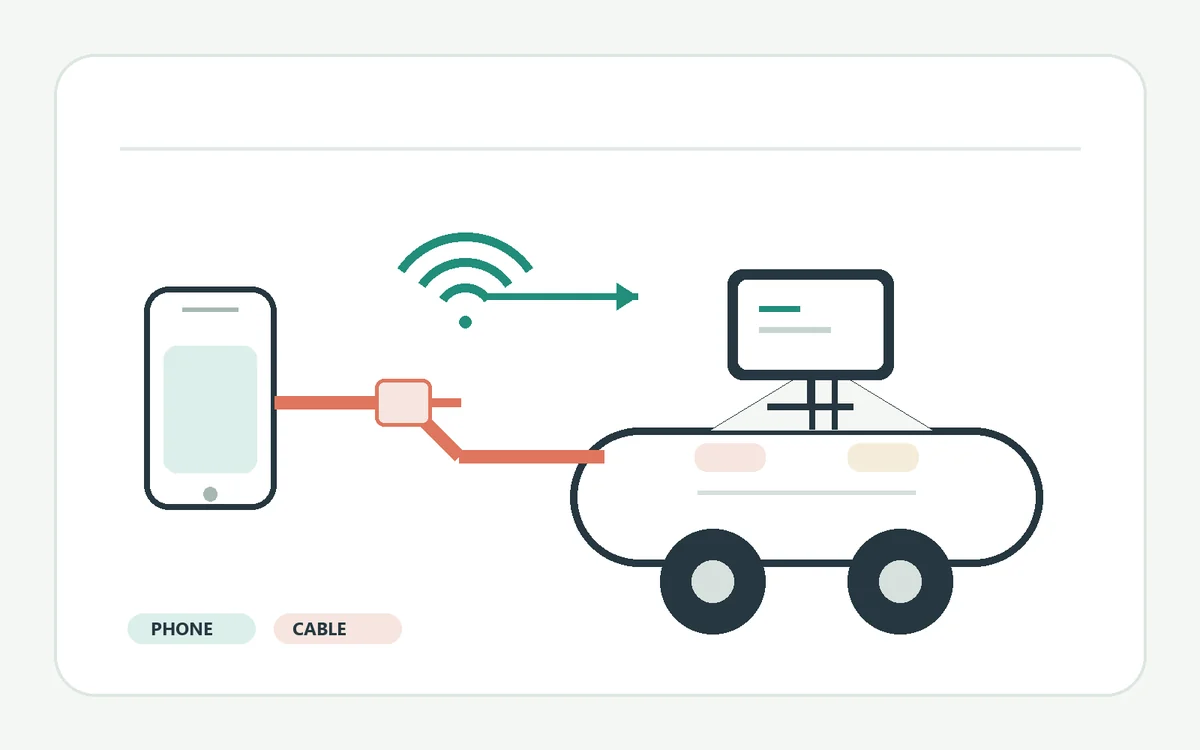
What your AA Browser loading test can and cannot tell you
Use the result to choose the next owner of the problem, not to claim a cause that the test did not prove.
A page that works on a phone but not in AA Browser narrows the issue to the app's embedded browsing environment or a site feature that behaves differently there. It does not prove that the app is broken. Some pages rely on desktop-only features, pop-ups, third-party cookies, downloads, or media systems that can be restricted by a device or service.
A page that fails on both screens may still be caused by a site outage or account access rule rather than Android Auto. Check the same URL from a second network only if you can do so safely and without exposing private account details.
Only one site fails
A site outage, redirect, login flow, script, or embedded-browser restriction becomes more plausible. Check the site's own status or support information from the phone before changing AA Browser data.
The phone and app both fail
Compare another trusted network. A network sign-in page, filtering rule, temporary service issue, or address problem may affect both. This does not identify which one without another controlled comparison.
A security warning appears
Stop at the warning. Check the site address and device time, and retry only after the certificate issue is resolved. Never enter credentials or bypass an invalid HTTPS certificate to test a page.
Collect useful evidence before reporting the problem
A concise, reproducible report helps distinguish an app defect from a website or device-specific condition.
Record the AA Browser version shown by your installation, phone model, Android version, whether the test used Wi-Fi or mobile data, the kind of vehicle connection, and the first error or loading state. Include whether the same URL and a second HTTPS site worked on the phone. Do not publish passwords, full account URLs, personal browsing history, license plates, or screenshots with private information.
If the issue reproduces across more than one site and network after a restart, consult the project's GitHub Issues for existing reports or submit a focused report through the project's supported channel. Include the exact steps and results; avoid claiming a cause unless the comparison demonstrates it.
If only one destination is affected, contact that website's support or check its service status. AA Browser cannot change a site's certificate, account permissions, outage, or policy. For separate launcher, setup, or connection symptoms, continue with the missing-app guide or the Android Auto connection guide.
Only run these tests when safely parked. Do not tap the display, read a page, change settings, or attempt to bypass Android Auto restrictions while the vehicle is moving.
AA Browser website loading FAQ
Why is AA Browser website not loading when the app opens?
Opening the app and loading a destination are separate steps. The phone's network, the website, HTTPS certificate validation, or the embedded WebView environment can affect a page after the app has opened. Compare the same URL on the phone and try one other trusted HTTPS site.
Why does one website fail in AA Browser but other sites work?
The destination may use a redirect, sign-in flow, pop-up, script, download, or media feature that behaves differently in an embedded browser. Check the same URL on the phone and consult the website's status or support before clearing app data.
What should I do if AA Browser shows an HTTPS certificate warning?
Stop and read the warning. Confirm the site address and the phone's date and time, then retry only after the certificate issue is resolved. Do not bypass the warning or enter account details on a page whose identity cannot be verified.
Should I clear AA Browser data when a page will not load?
Not as an early step. Compare the URL on the phone, test another site, restart the phone, and check one network condition first. Clear storage or data can remove local browsing information; use it only when you understand the effect and have protected anything important.
Can I test AA Browser websites while driving?
No. Do not read or interact with a browser while the vehicle is moving. Park in a safe, legal place before opening pages, changing settings, or collecting diagnostic details.