Android Auto disconnects: the quick answer
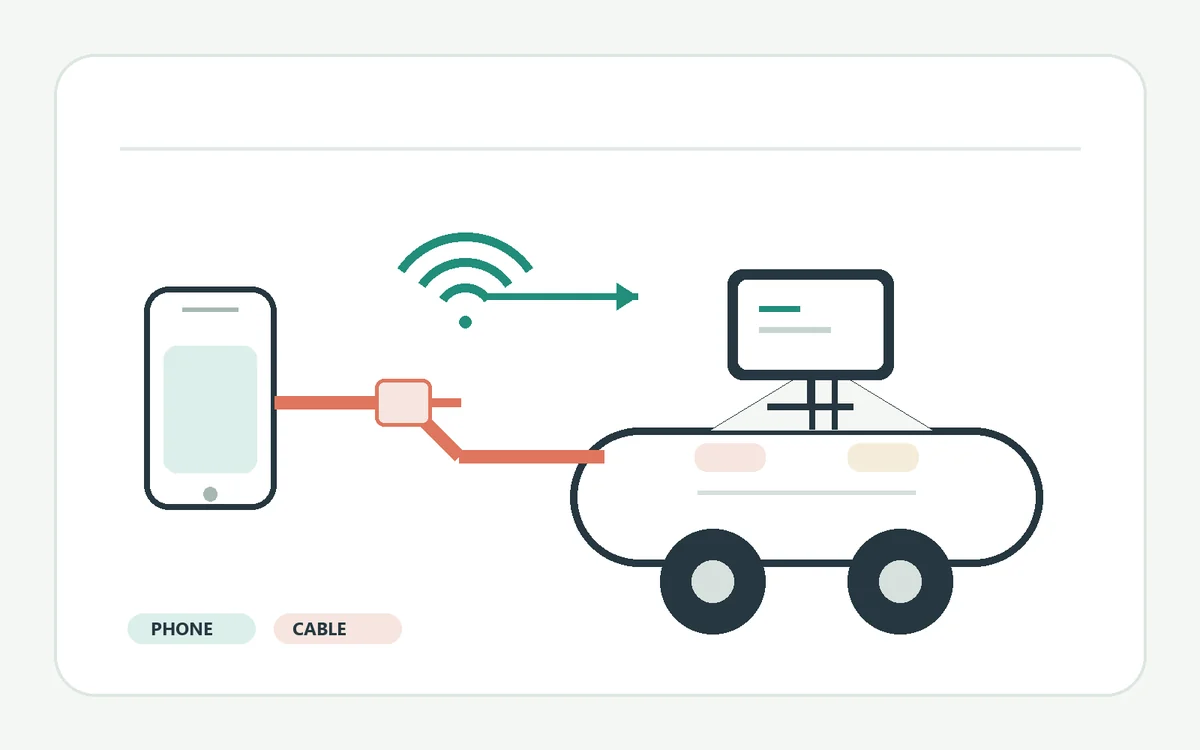
A disconnect can come from the link, phone, or vehicle. The last step that still works is more useful than a guess about which device is at fault.
For USB, inspect the cable and car data port. For wireless, check pairing before replacing hardware. If both modes drop, look at phone or vehicle software. If Android Auto stays open and one app closes, troubleshoot that app rather than resetting the whole connection.
Make changes only while parked. If a disconnect happens on the road, wait until you are safely stopped before reproducing it. Do not reach for a cable, unlock the phone, or bypass motion restrictions while driving.
- Record wired or wireless mode and time to disconnect.
- Note whether the full screen drops or one app stops.
- Repeat one test after each change.
Find out where the connection is dropping
Match the symptom to a link before clearing data or removing saved devices.
Notice what disappears first. A USB warning, charging change, or drop when the plug moves points to the physical link. A wireless session that fails before Android Auto opens suggests compatibility or pairing. If it connects and drops later, record the timing instead of assuming a timeout.
When safe, compare one other compatible car or phone. If this phone works in another car, inspect the original vehicle; if another phone works in the same car, focus on the first phone. One comparison is enough to choose the next check.
| Pattern | Start with | What the test tells you |
|---|---|---|
| Wired session drops when the plug moves | Cable and USB port | Whether the physical data link is stable |
| Wireless session will not start | Compatibility and saved pairing | Whether the phone and car can establish a new session |
| Both modes disconnect | Phone, app, and vehicle software | Whether a shared software or car-side issue is involved |
| Only one app closes | That app and its network | Whether Android Auto itself is still connected |
If wired Android Auto keeps disconnecting
A USB cable can charge a phone but still fail to carry data reliably.
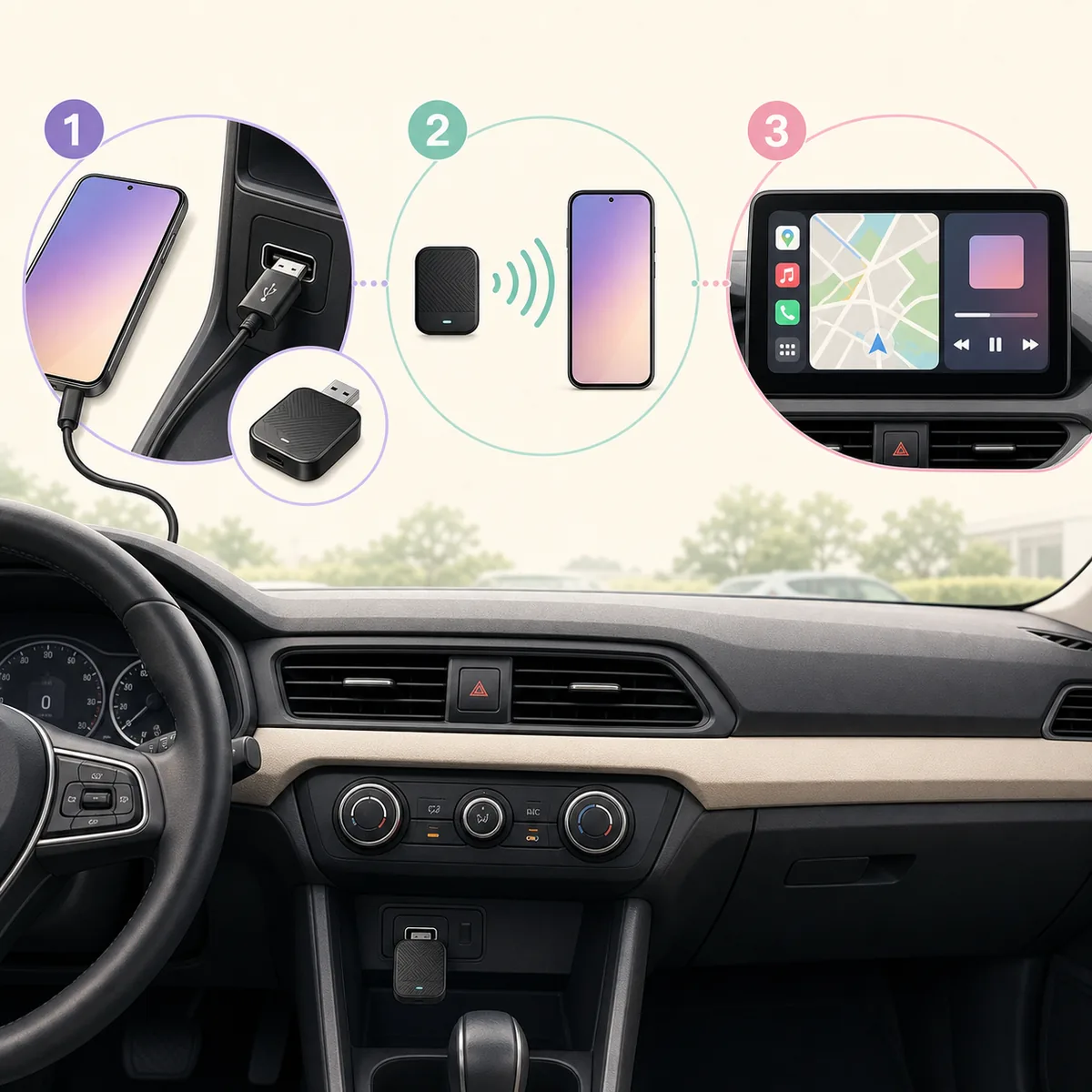
Use a short cable known to support data, not only charging. Check both ports for visible debris or damage without inserting tools. Connect directly to the vehicle's projection-capable port; some cars have USB sockets that provide power but no data.
Keep the phone still during a parked test. If touching the cable drops the session, try another cable first. If two good data cables fail in one port, test another port documented for projection. Stop if a connector is hot or damaged.
- 1
Unplug once and inspect
Park and unplug both ends. Look for bent connectors, fraying, a loose fit, or visible debris. Do not scrape inside either port.
- 2
Try a known-good data cable
Use a cable that has transferred files or held another data connection. Avoid extensions and hubs during this test.
- 3
Use the correct vehicle port
Use the socket documented for smartphone projection. Leave other USB devices unplugged.
- 4
Hold the setup steady
Keep the setup still and note whether the session remains connected. A stable result after changing only the cable points to the original cable.
If wireless Android Auto keeps disconnecting
Wireless projection depends on compatibility, pairing, and a stable phone-to-car link.
Confirm the vehicle supports wireless Android Auto; wired support alone does not guarantee it. If wireless worked before, restart the phone and infotainment system normally, then make one fresh parked connection. Keep the phone in its usual cabin position.
If restarting does not help, remove only this vehicle's saved Android Auto or Bluetooth pairing and set it up again as the manufacturer describes. Removing every Bluetooth device can disrupt watches and other cars. Change pairing, Wi-Fi, and battery settings separately.
Check the phone and car without resetting everything
If both connection types fail, investigate the parts they share.
Restart the phone and infotainment system normally, then make one parked test. Check official update screens for phone, Android Auto, and vehicle updates. Do not interrupt a vehicle firmware update.
If the phone asks how to use USB, follow vehicle or Android Auto guidance rather than choosing charging-only. If battery restrictions pause the app, test a normal setting briefly and restore usual protection afterward.
- Restart and test before removing a pairing.
- Install updates from the phone, Google, or vehicle maker.
- Change one connection or battery setting at a time.
- Record the warning before clearing it.
- Check the official Android Auto Help center for device-specific setup guidance.
Separate an Android Auto disconnect from an app problem
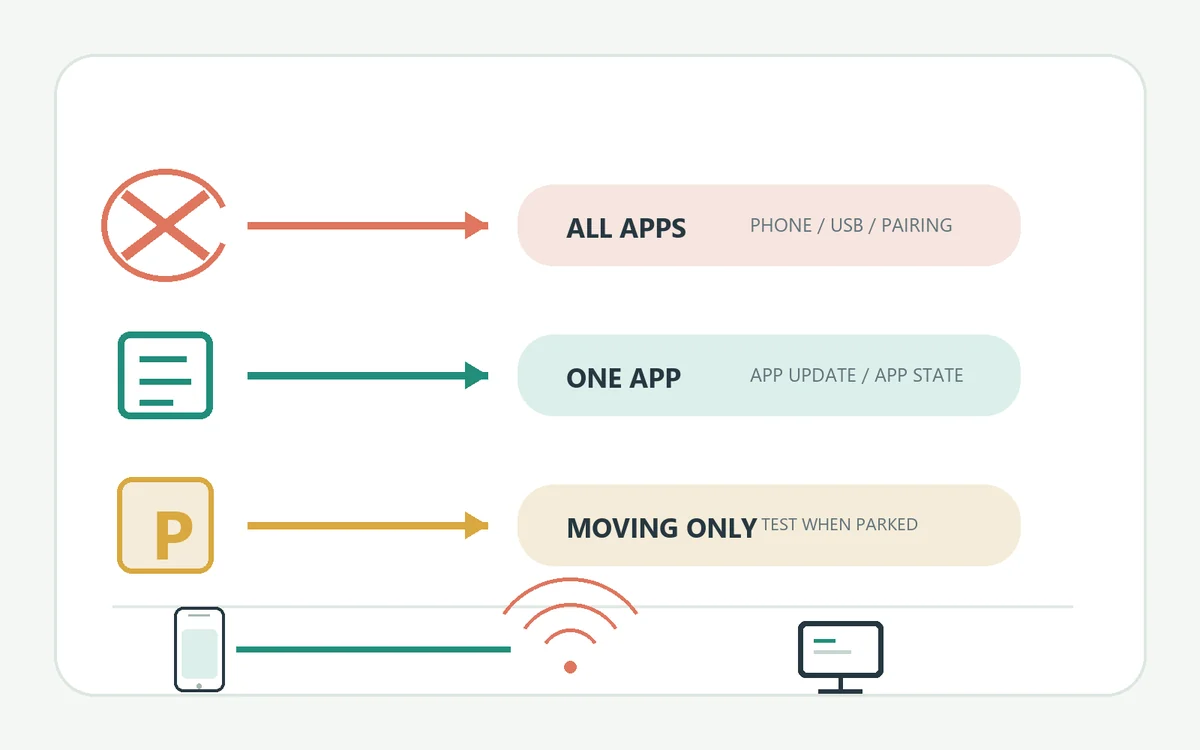
A single app can fail while the phone-to-car session stays connected.
Once parked, check whether the Android Auto launcher or another supported app still works. If so, update or restart the affected app and see whether its service also fails on the phone outside the car.
If projection closes or the car returns to its built-in screen, investigate the session link. A black display with audio still playing differs from a full disconnect; record what remains active before replacing a cable.
| What remains available | Likely scope | Next useful check |
|---|---|---|
| Android Auto launcher and other apps | One app or its network | Update the app and test its service on the phone |
| Car returns to its built-in screen | Phone-to-car session | Repeat a parked wired or wireless link test |
| Audio continues but display is blank | Display or app state | Record the exact screen and audio behavior |
When to clear data, reset pairing, or contact support
A broad reset can erase evidence and saved cars, so reserve it for failures that survive simpler checks.
Do not begin by clearing Android Auto storage, resetting all network settings, or factory-resetting the display. These actions can erase cars, permissions, Wi-Fi, and pairings without fixing a cable or port. If a reset is necessary, record the setup and change only one scope.
Contact the vehicle maker for port, infotainment, or firmware patterns. Contact phone or Google support if the same phone fails in multiple compatible cars. Share model and software versions, connection type, time to disconnect, and the exact message; remove account, address, and vehicle details from screenshots.
- Escalate a port, head-unit, or firmware pattern to the vehicle manufacturer.
- Escalate a phone that fails in more than one compatible vehicle to phone or Android Auto support.
- Include the repeatable pattern and tests that changed it.
- Remove private vehicle, account, and location details before posting.
Android Auto disconnecting FAQ
Why does Android Auto keep disconnecting from my car?
A weak USB data connection, incompatible or stale wireless pairing, phone software state, or vehicle infotainment issue can interrupt a session. Start by identifying whether the failure is wired or wireless.
Can a charging cable make Android Auto disconnect?
Yes. A cable may charge the phone but carry unstable or no data. Test a short, known-good data cable directly in the vehicle's projection-capable USB port.
Why does wireless Android Auto disconnect after a few minutes?
The wireless connection, phone state, vehicle system, or compatibility may be unstable. Record the timing, restart normally, and create one fresh pairing while parked before changing more settings.
Should I delete all Bluetooth pairings to fix Android Auto?
No. Remove only the relevant saved pairing for this vehicle if a fresh pairing is needed. A broad Bluetooth reset can disrupt unrelated devices and does not identify the cause.
Why does only one app disconnect in Android Auto?
If the launcher and other apps still work, the phone-to-car session may be intact. Check that app's update, account state, and phone network before resetting Android Auto.
Will clearing Android Auto data fix repeated disconnects?
It may remove saved configuration, but it can also erase cars and preferences without fixing a bad cable or vehicle port. Try the narrower connection checks first and record your setup before a reset.
Is Android Auto safe to troubleshoot while driving?
No. Park in a safe, legal place before connecting cables, changing settings, or repeating a test. Do not handle the phone or bypass driving restrictions while the vehicle is moving.
What should I send to support about an Android Auto disconnect?
Include phone and vehicle versions, wired or wireless mode, the exact message, when it drops, and each controlled test result. Remove account, location, and vehicle-identifying information.