Android Auto not connecting: the fastest safe diagnosis
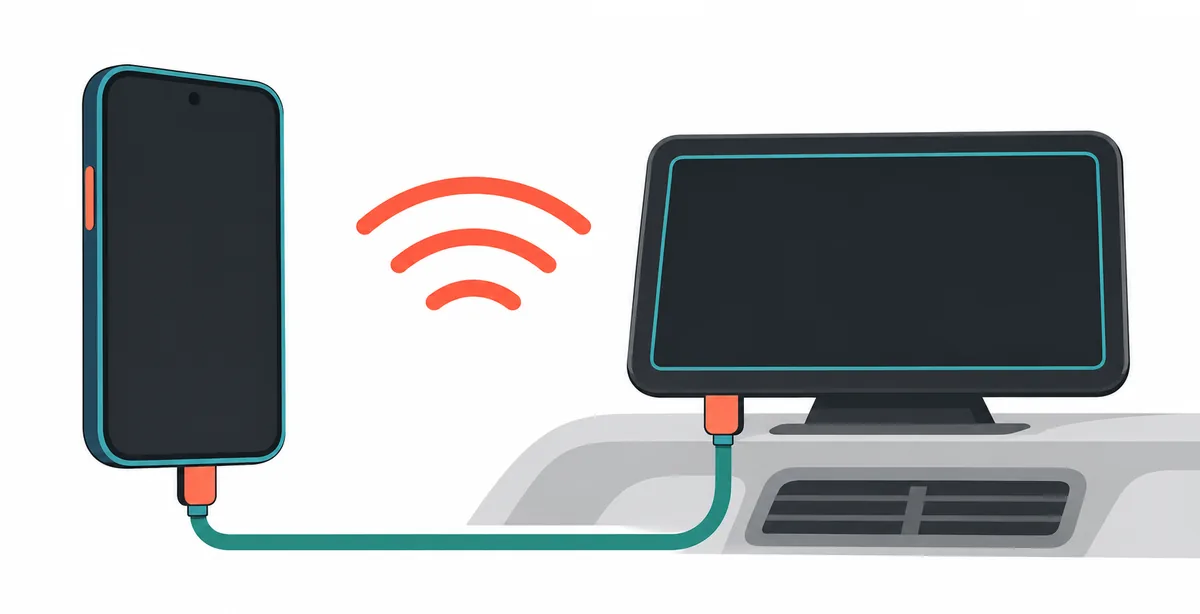
A charging phone does not prove Android Auto data is working. Bluetooth pairing does not prove wireless projection is ready.
Start with the exact failure. Does the car never detect the phone, does Android Auto appear but fail to launch, or does only one app fail after the dashboard opens? Those are different jobs. If you are troubleshooting AA Browser itself, first prove that the Android Auto connection works with another supported app; a browser page problem should not be treated as a vehicle pairing problem.
Google's Android Auto troubleshooting guidance says the car and USB data path must be compatible; a charging socket alone is not proof. Samsung also recommends a wired first setup for wireless projection.
Do every test parked. Do not read, type, reconnect a cable, or change settings while moving; stop when a safety message appears.
Keep the phone still while driving. Configure and test Android Auto before a trip, or let a passenger handle the screen without distracting the driver.
Match the symptom to the first check
The last step that works is more useful than a list of random resets.
Record wired or wireless mode, phone and Android version, car or head-unit model, and the exact message before changing anything. If it worked before, start with the item that changed; if it never worked, check compatibility and the data port before clearing a cache.
| What you see | First comparison | What it can suggest |
|---|---|---|
| The phone charges but the car shows nothing | Use a short, known-good data cable in the vehicle's projection USB port | Power is present, but data transfer, the port, or compatibility may be failing. |
| The car sees Bluetooth but no Android Auto | Try the original wired setup before rebuilding wireless pairing | Bluetooth alone may be available while wireless projection is unsupported or incomplete. |
| Android Auto opens and immediately closes | Restart the phone and car system, then check updates and permissions | Phone state, app services, or vehicle software may be stopping the session. |
| Only AA Browser or one app is missing | Check the stable Android Auto launcher with another supported app | The phone-to-car link may work; the issue can be app visibility or app state. |
| The same phone fails in more than one compatible car | Compare the phone, Android version, permissions, and a second data cable | The phone or its software becomes more likely than one vehicle port. |
Fix Android Auto not connecting by USB
A charging-only cable or power-only port can make the phone look connected while Android Auto receives no usable data.
The Samsung guide and Ford guide both emphasize a certified data cable and the correct vehicle port. If no data prompt appears, inspect for damage without scraping or forcing the connector, then ask the phone or vehicle maker for hardware support.
- 1
Confirm the car and phone support Android Auto
Check the maker's compatibility list and Android Auto requirements. A USB socket can provide power without supporting Android Auto, so charging is not proof.
- 2
Use the projection-capable USB port
Choose the port the manual names for phone data or projection. Skip hubs, extensions, and loose adapters during the first test.
- 3
Swap to a short data cable
Use the phone's supplied cable or another certified data cable under about one metre. A cable can charge while its data lines are damaged.
- 4
Unlock the phone and accept the prompt
Keep the phone unlocked and accept matching Android Auto or data-transfer prompts. Choose data transfer when it offers charging only.
- 5
Restart once and test
Restart the phone and infotainment system, then test the same cable once.
Fix Android Auto not connecting wirelessly
Wireless Android Auto still needs a compatible car, phone, Bluetooth pairing, Wi-Fi handoff, and a clean first setup.
Bluetooth hands-free calls do not prove wireless Android Auto support. If the wrong car connects, forget only that vehicle and retry while parked. An adapter changes the path but cannot add an undocumented feature; use the wireless adapter compatibility guide after the wired path works.
- 1
Prove wired Android Auto first
Complete one wired session with the same phone before wireless setup. Samsung recommends this to confirm the basic phone and vehicle handshake.
- 2
Check the phone and car pairing
Turn on Bluetooth and Wi-Fi, select the intended vehicle, and remove only that vehicle's stale pairing if setup is stuck.
- 3
Restart before rebuilding the pairing
Restart the phone and vehicle system. If needed, remove the old vehicle entry on both ends, pair once, and wait for the complete prompt.
- 4
Compare with a cable
If wired works but wireless fails, focus on wireless compatibility, pairing, or the head unit. Keep the cable as a fallback while checking the manual.
Check phone permissions, updates, and the car system
Once the cable and pairing path are known, look for a software state that blocks the session.
Update the phone, Android Auto, and vehicle through trusted channels, then repeat one controlled test. If another phone works in the same car, focus on the original phone's permissions, account, software, and cable; if every phone fails there, the port or head unit is the stronger lead.
Keep app scope separate: a stable dashboard with a missing icon belongs in the AA Browser visibility guide, while one website failing belongs in the website loading checks.
Phone state
Install normal Android and Android Auto updates, unlock the phone for setup, and review requested permissions. Android Auto may be built in rather than a separate app.
Vehicle state
Confirm Android Auto is enabled and vehicle software is current. Follow the car manual if its menu uses a different name.
Safety state
Stay parked and follow safety notices. Do not bypass motion restrictions or install an unrelated APK to force a display.
When to reset, and when to contact support
A reset is a change to your stored setup, not a diagnosis. Use it only after the narrow connection checks are recorded.
A useful support report lists what worked before, connection mode, cable and port, charging behavior, exact error, and whether another phone or car changed the result. If a compatible phone never connects in one car, contact the vehicle maker; if the phone works elsewhere, keep the next investigation vehicle-side.
For the separate symptom where a working session repeatedly drops, continue with Android Auto keeps disconnecting. That page starts from an established connection and uses a different test order.
After each check, you should know whether the next owner is the cable, phone, wireless pairing, app state, or vehicle. Stop when the evidence is specific enough for the correct support channel.
- Do not factory-reset the car or phone because one cable failed.
- Avoid clearing Android Auto storage until you understand that saved cars, permissions, and preferences may be removed.
- If you remove a pairing, remove the one vehicle entry and record the pairing steps first.
- Contact the vehicle maker for a port, head-unit, or firmware pattern.
- Contact phone or Android Auto support when the same phone fails in multiple compatible vehicles.
- Share phone and car models, Android and vehicle software versions, connection type, exact error, and controlled test results; remove private account and location data.
Android Auto not connecting FAQ
Why is Android Auto not connecting even though my phone is charging?
Charging proves that the port supplies power, not that the cable and port carry Android Auto data. Try the vehicle's projection USB port and a short, known-good data cable, then check compatibility and the phone's data-transfer prompt.
Why does Android Auto connect by Bluetooth but not appear on the screen?
Bluetooth calls and wireless Android Auto are different capabilities. Confirm that the car supports wireless projection, prove one wired session first, keep Bluetooth and Wi-Fi on, and rebuild only the relevant vehicle pairing while parked.
Can a bad USB cable cause Android Auto not to connect?
Yes. A cable can charge a phone while its data lines are damaged or unsupported. Test a short cable that supports data transfer, avoid hubs and extensions, and stop using a frayed connector.
Should I clear Android Auto data when it will not connect?
Not as the first step. Record the current setup, test compatibility, cable, port, permissions, and updates first. Clearing storage can remove saved vehicles and preferences without fixing a hardware or compatibility problem.
Why does Android Auto work with another phone but not mine?
The original phone's Android version, permissions, account state, cable, or software state may be different. Compare those items while keeping the car, port, and connection mode constant, then contact phone or Android Auto support if the pattern repeats.
Why does Android Auto not connect wirelessly after a phone update?
An update can change permissions, pairing state, or compatibility behavior. Restart the phone and car normally, check updates on both sides, prove the wired path, and create one fresh pairing instead of changing every network setting.
Is AA Browser the reason Android Auto will not connect?
Usually not if the whole dashboard fails before any app opens. Test another supported Android Auto app first. If the connection is stable but AA Browser is missing, use the app visibility guide; if only a page fails, use the website loading guide.
Can I troubleshoot Android Auto while driving?
No. Park safely before touching the phone, reconnecting a cable, changing settings, reading a page, or repeating a test. Do not bypass motion restrictions or handle the device while the vehicle is moving.